Dual Enrollment | Steps To Apply
Admissions Application Steps
The Louisiana Board of Regents launched the Apply DE portal (Apply Dual Enrollment) to streamline the dual enrollment process for high school students. They switched to this centralized system to reduce administrative barriers, cut down on paperwork, and make it easier for students to access college courses before high school graduation.
Southern University at New Orleans will go live with Apply DE portal beginning with the Fall 2026 semester.
Part 1: Submitting the Application Form
STEP 1: Apply online at https://applyde.laregents.edu
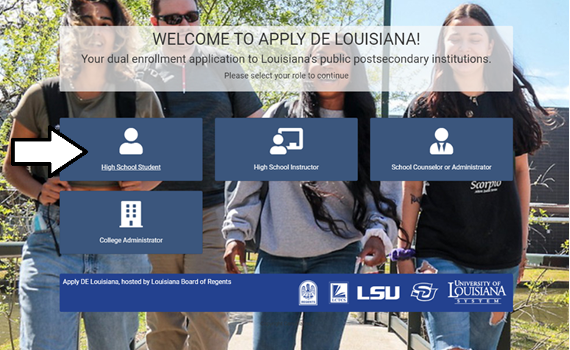
Welcome to Apply DE Louisiana!
Your dual enrollment application to Louisiana’s public postsecondary institutions.
STEP 2: Click on the tile and select your role to continue.
“High School Student”
“High School Instructor”
“School Counselor or Administrator”
“College Administrator”
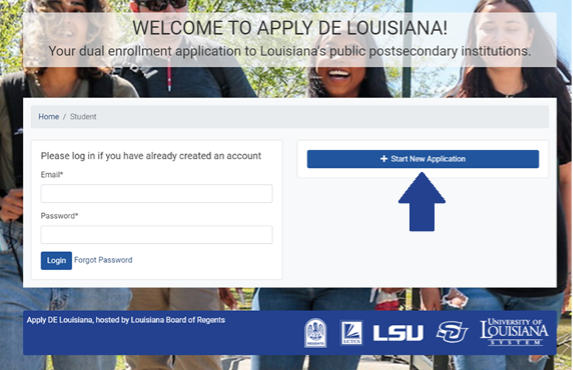
STEP 3: Click tile “Start New Application”
STEP 4: Please complete the form to start your application.
To begin, click on the “Start New Application” button. Once you’ve submitted your application and created your account, you’ll be able to log in.
STEP 5: Check the “I agree to the above terms” box and click the "I am not a robot" box
STEP 6: Submit Form and Continue
Answer the questions throughout the application. Any required fields will be marked with an asterisk. Be sure to have your social security number on hand, as you will need to enter it to submit your application. A few key components are listed below, but be sure to answer as much as possible throughout the application.
Please use a personal email address, like Gmail, so you can receive communications from Dual Enrollment Administrators. When creating a password, you’ll need to use a minimum of 8 characters, including at least 1 digit and 1 uppercase letter.
Part 2: Completing Your Application – Applying for Classes
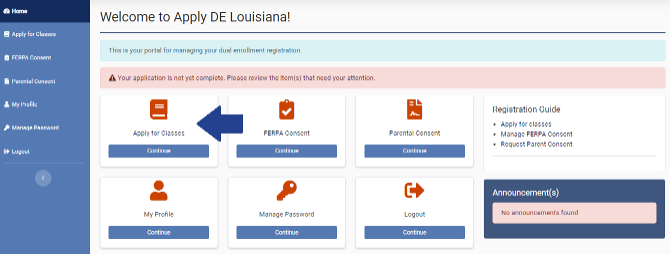
Now that you have submitted the first part of your application, it’s time to select classes to apply for. After submitting your registration, you'll be prompted to sign the Student Agreement and will be brought to the “Apply for Classes” page. If you've accidentally navigated away from this area, you can get back by clicking on the “Apply for Classes” tile on your home screen or tab in the left sidebar.
You’ll find some tabs to help you apply for classes. The “Class(es) in your High School” tab displays a list of all classes available through your high school. You can search for classes using keywords or course prefixes with the Search bar in the upper right corner. To apply for specific classes, select those checkboxes and click the “Apply for Selected” button.
**Please note that you will be unable to apply for classes until you have signed the Student Agreement.
Part 3: FERPA and Parental Consent
To review the optional FERPA Consent form, click on the “FERPA Consent” tile on your home screen or tab in the left sidebar. In compliance with the Family Educational Rights and Privacy Act (FERPA) of 1974 as Amended, the college will not release student grades, schedules, or financial information to parents, or others, unless permission is given by the student. If you wish to provide up to 4 parents or guardians with access to your education records (including course grades and payment information), you should enter their names on this screen and assign them a 4-digit PIN for verification purposes. When you are finished, provide your signature and click the “Submit Consent to Release Form” button.
Unlike the optional FERPA Consent form, the Parental Consent form is required in order to complete your application. You must first apply for classes before you can request Parental Consent. After entering your parent or guardian’s name and email, click the “Submit Parent Consent Request” button. Please be sure to remind your parent or guardian to check their email, including their Spam folder, and follow the instructions to complete the Parental Consent process.
Student Application User Guide
https://canusia.zendesk.com/hc/en-us/articles/24683937182871-Student-Application-User-Guide